SimpleAI Trial Companion Part 1: Mastering AI Assistant
The AI Assistant is your always-on legal engineer. In this section, you will experience the speed of ad-hoc queries and instant redlining.
AI Assistant is designed for precise changes or questions about the document. You can find it as a tab in the topmost section of your SimpleAI add-in.
💡 Pro-tip: you should treat the AI like a junior associate sitting next to you. Be very clear and unambiguous with your instructions.
The Ask Feature
You can use the very familiar-looking chat box at the bottom to ask questions and interact with the document. The AI will review the information contained in your document. (Don’t mind the red, blue and green icons for now. We’ll cover those later.)
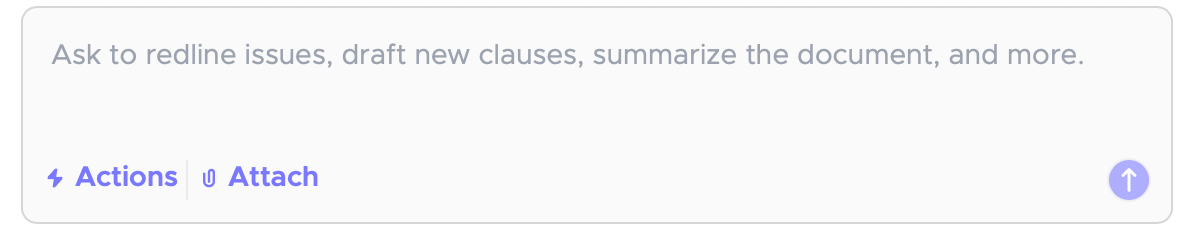
In the ask feature, you can:
- Ask simple questions (“What is the governing law?”)
- Ask broader, more strategic questions (“What are the main risks to me as the customer?”).
- Ask to explain the practical impact of certain provisions.
- Ask to suggest wording for comments explaining rejections or asking for revisions.
- Explain your rationale for changes with comments, which can be automatically deployed if you’re using a playbook!
- Ask to suggest a more balanced position or market standard provision.
- Ask the AI Assistant to summarize all redlines made to the agreement and put them in an email format to be shared with (counterparty/internal stakeholders) to explain what changes you’ve made.
💡 Pro-tip: Role frame! Tell the AI Assistant the point of view from whom you want the review to be run (e.g. “review this from Customer’s perspective”).
🎬 Watch & Learn: Click to see a video overview of the AI Assistant Ask feature.
📖 Go Deeper: Access our prompt masterclass to see how you can prompt to get the best output from the tool.
Actions
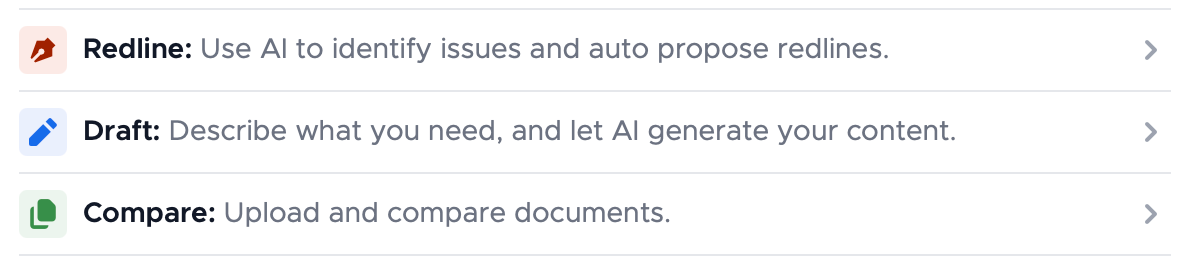
Remember the little red, blue and green icons? Those are ⚡️Actions.
Actions are instructions for your AI Assistant to take on specific tasks. Think of them as distinct “lanes” in which different sets of tasks are performed. There are three types of actions you can take:
🎖️This is a unique SimpleDocs feature, designed to work like lawyers do!
- Redline. Use this if you want to make changes directly to your agreement
- (e.g. “Update IP Clause so it’s more favorable to the customer”). The AI Assistant will suggest changes. You can then review and apply them.
- You can also redline an existing markup. The AI will recognize redlines and allow you to make changes to those redlines.
🎖️This is a unique SimpleDocs feature.
- Draft. Use this to create new content entirely.
- (e.g. “draft a non-solicitation clause”). The AI will generate language for you.
- It also benchmarks that against our Law Insider™️ database, which contains millions of other agreements. The score evaluates substantive similarity (rather than just a word match) and how market standard the provision is.
- 💡Pro-tip: you can select specific text and ask the AI to draft within chosen parameters (e.g. “draft an IP clause that’s more favorable to the customer than the selected text”).
- Compare. Use this to compare documents & handle version control.
- Attach the document you want to compare and instruct the AI to compare the attached document to the agreement and outline the differences between the two.
- You can upload PDFs, CSV or Word formats.
- Then you can go back into redline to instruct it to change the agreement so it matches the term sheet.
💡 Pro-tip: In Compare mode, you can:
- catch any redlines or changes that might have been inadvertently made outside of tracked changes.
- use the AI Assistant to review your agreement’s risk profile.
🎬 Watch & Learn: Click to see a video walkthrough of the AI Assistant Actions.
✅ Exercise A: Testing the Ask Feature
The goal is to test the AI’s ability to understand context and legal nuances.
Instructions:
- Open the “Sample Contract” document in Microsoft Word, and click the SimpleAI add-in to open.
- Navigate to the AI Assistant tab.
- Type the following prompts into the Chat/Assistant panel:
- Applicable Law. “What is the applicable law in this agreement?”
- Risk Analysis. “What are the key risks to me in this agreement as the customer?”
- Plain English. Highlight the indemnity clause and ask: “Explain this indemnity clause in plain English."
- Clause Impact. “Explain the impact of the insurance clause on me as the customer."
- Summarization. "Summarize the key termination clause."
- Party Perspective. “If I'm Party A, what provisions are unfavorable to me?"
💡 Pro-tip: The AI reads the entire document context. You don't need to copy/paste text into the chat; simply refer to the clauses by name or highlight specific text to focus the AI's attention.
💡 Pro-tip: We encourage you to spend as much time as you want interacting with the AI Assistant. It’s a very powerful tool, and we’ve seen fantastic results from very creative customers!
✅ Exercise B: Testing the Redline Feature
Stop manual typing. Let the AI apply the changes for you.
Instructions:
- Activate Redline mode.
- Type the following prompts into the Chat/Assistant panel:
- IP Favorability: "Amend the IP clause so that it’s more favourable to the customer."
- Balance Indemnity: "Rewrite the indemnity clause so that it’s more balanced between the parties.
- Specific Caps: "Introduce a liability cap of $2M with carve-outs for data protection and confidentiality breaches.
✅ Exercise C: Testing the Draft Feature
Generate new clauses from scratch instantly.
Instructions:
- Activate Draft mode.
- Type the following prompts into the Chat/Assistant panel:
- Non-Solicit: "Draft a non-solicitation clause."
- Compliance: "Draft a GDPR-compliant Data Protection clause."
✅ Exercise D: Testing the Compare Feature
Ensure your agreement matches the agreed-upon business terms.
Instructions:
- Activate Compare mode.
- Locate the Term Sheet in your Trial Sample Packet.
- Use the Attach/Upload feature in the chat panel to upload the Term Sheet.
- Run this prompt: "Provide an overview of the differences between the term sheet and this agreement."
- Follow up. "Make changes to the agreement to align with the term sheet."
✅ Exercise E: The Wrap Up
Instructions:
- Return to AI Assistant (not in Draft mode)
- Run this prompt: "Compile an email to the counterparty explaining the key changes made to this agreement."
🎬 Watch & Learn: Click to see a full rundown of the AI Assistant exercises.