AI Assistant – Getting Started
Chapter 1 · 5 min read
SimpleAI is a Microsoft Word add-in. It combines AI-powered contract review with Law Insider's database of millions of real-world agreements - all inside the document you're already working in. Nothing to configure. No separate app. Open a contract, ask a question, get an answer.
Open SimpleAI in Word
SimpleAI runs as a sidebar inside Microsoft Word. Here's how to launch it for the first time.
- Open a contract in Microsoft Word
- Find the SimpleDocs icon in the Home ribbon and click it
- The SimpleAI sidebar opens to the right of your document
- You're ready to go
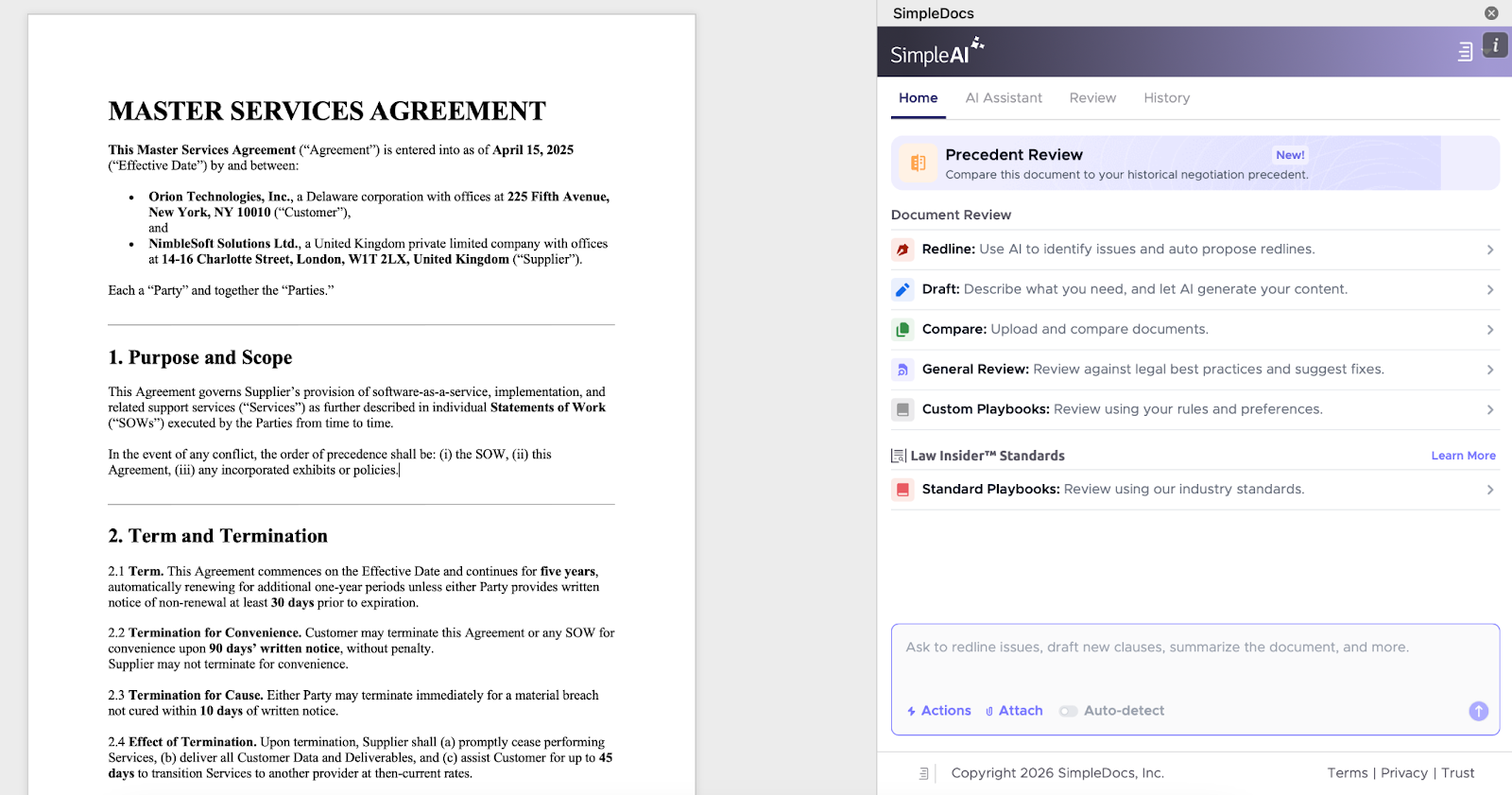
What you're looking at
The sidebar has three areas you'll use for every task:
Action selector - the ‘Actions’ button at the bottom where you choose between Ask, Redline, Draft, and Compare. Each action shapes how the AI interprets your instruction. Always set this before typing.
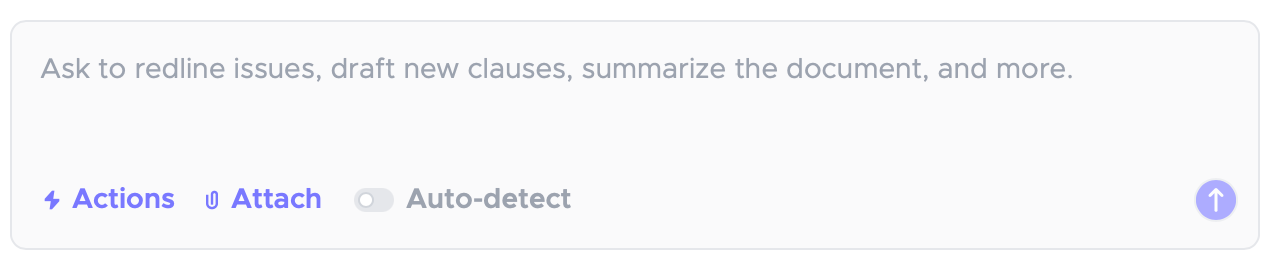
Prompt input - where you type your instruction. One instruction at a time works best.
Response panel — where the AI's output appears. Depending on the action, this might be an explanation, tracked changes, new clause language, or a comparison summary.
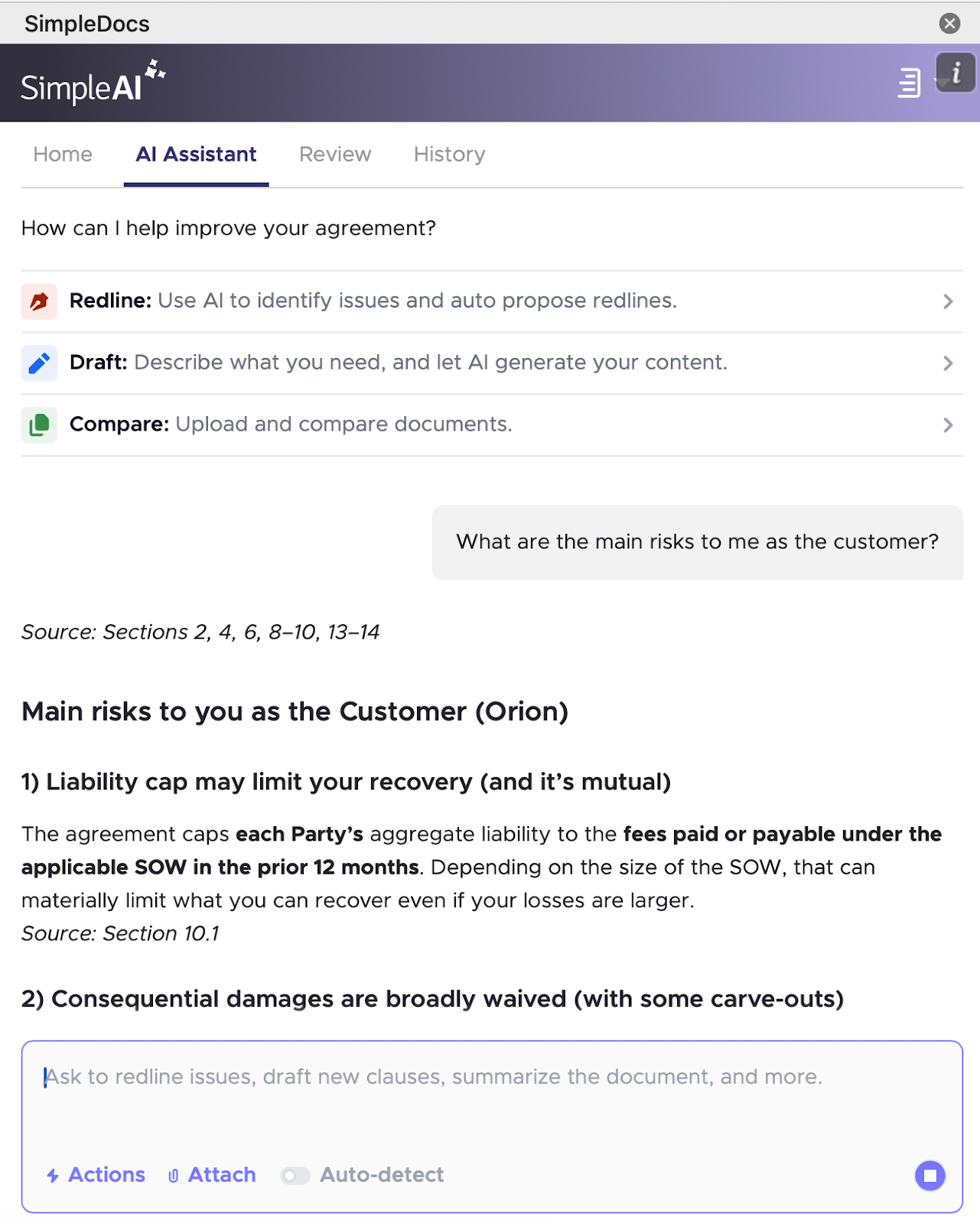
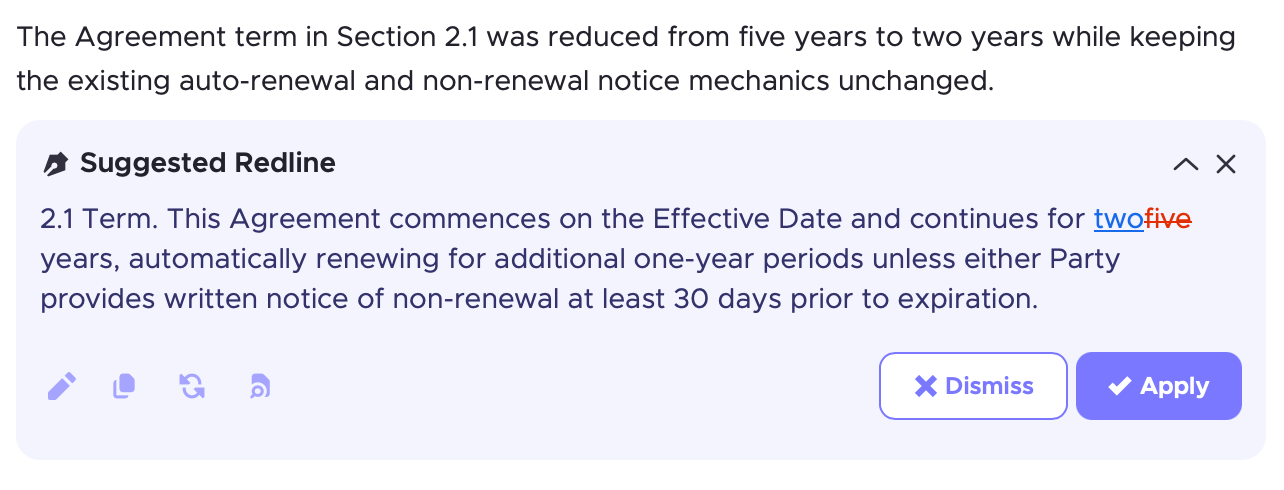
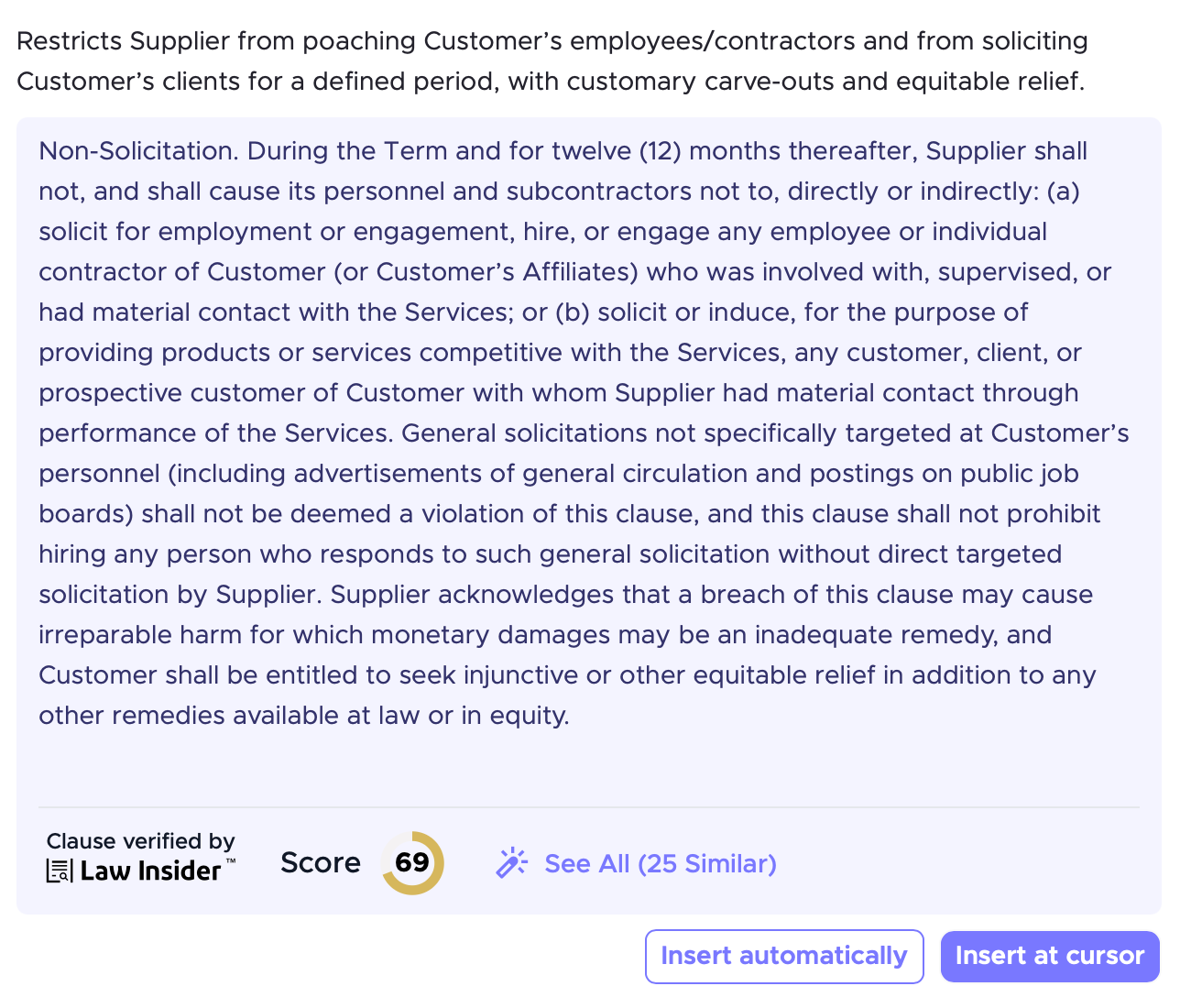
For Redline and Draft outputs, you'll also see Apply and Insert buttons that let you push changes directly into your document. All changes appear as tracked changes, so you stay in control of every edit.
Redline
Draft
Ask your first question
The fastest way to understand what SimpleAI can do is to use it. Here's the simplest possible starting point.
- Open a contract you're currently working on
- In the sidebar, make sure Ask is selected
- Type: "Give me a high-level summary of this agreement."
- Hit send
Within a few seconds you'll have a plain-English overview of the contract - parties, purpose, key obligations, and anything that stands out.
💡 You don't need to highlight anything for Ask to work. SimpleAI reads the full document automatically. Highlighting text is optional and useful when you want the AI to focus on a specific clause rather than the whole agreement.
What just happened
When you submitted that prompt, SimpleAI did three things:
Read the document. The full contract, not just the visible portion. It understands clause structure, defined terms, and how provisions relate to each other.
Cross-referenced the Law Insider database. Your contract's language was benchmarked against millions of real agreements. This is what makes outputs grounded in actual market practice rather than generic legal text.
Returned a structured response. The answer isn't a raw AI output - it's shaped by the context of your specific document.
This happens every time you use any of the four actions, whether you're asking a question, redlining a clause, drafting new language, or comparing two versions.
The four things SimpleAI can do
You've used Ask. There are three more actions, and each produces a different kind of output.
Ask - understand without editing. Get answers, summaries, risk assessments, and obligation maps.
Redline - propose tracked changes to existing language. Strengthen, soften, fix, or align clauses already in the document.
Draft - create new language. Generate clauses, definitions and alternatives that don't exist yet.
Compare - see what changed between two documents. Identify additions, deletions, and shifts in risk or obligation.
Each action is covered in its own chapter. The next chapter explains how to choose between them, and why picking the right one before you type matters more than what you actually type.
One thing to know now: each prompt should use exactly one action. "Summarize the liability clause and redline it to cap at 2x fees" is two instructions — an Ask and a Redline. Split them into separate prompts and you'll get better output every time.